Account & Activation
Signing in, and unlocking premium with your checkout email.
How do I activate premium after paying on the web?
Your Premium is tied to the email address you used at checkout. There are two ways to activate it.
★ Fastest — activate in one tap
Open the activation link in your “Payment Success” email (or tap Get the app at the top of this page). Languoso installs and opens straight to the activation screen — just enter your checkout email and Premium unlocks.
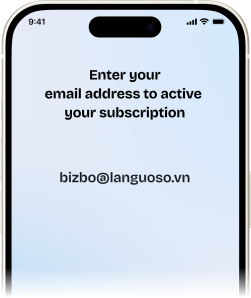
Or activate manually from Settings
- Download and open Languoso from the App Store.
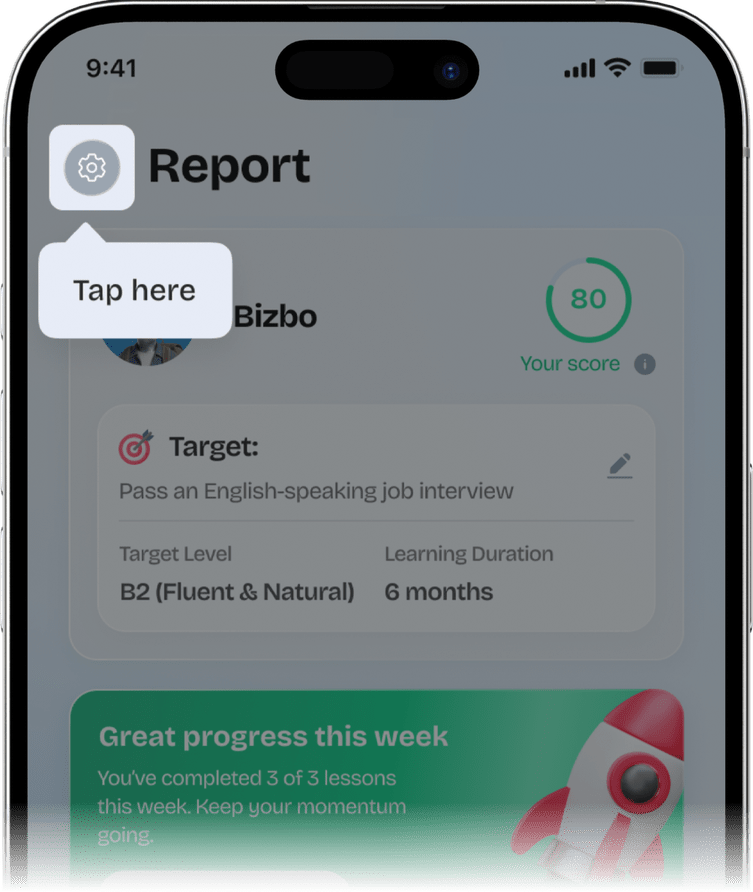
- Tap the Settings icon in the top-left of the Report screen.
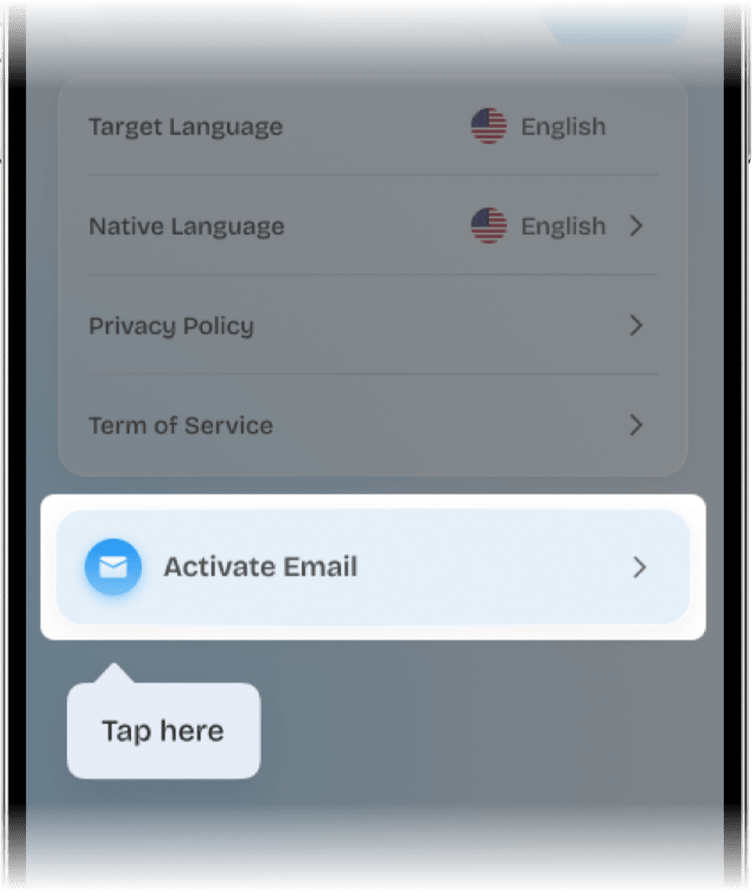
- Scroll to the bottom and tap Activate Email.
- Enter your checkout email and tap Activate.
Still on the free version after activating? Pull down to refresh your profile, or close and reopen the app. Activation can take up to a minute after payment.
I paid with the wrong email. How do I fix activation?
No problem — this is easy for us to fix. If the account you use in the app is different from the email on your payment receipt, our team can move your Premium to the right address.
Contact support with your app email, your checkout email, and your order number, and we’ll take it from there, usually within one business day.
Contact support ↓Billing & Payment
Plans, trials, receipts, refunds, and cancelling.
How do I cancel my subscription?
You can cancel anytime. Contact our team and we’ll take care of it for you and confirm by email. Cancelling stops future renewals — you keep Premium until the end of the period you’ve already paid for.
If you’re still within 6 days of your purchase, you may also be eligible for a full refund — see the refund question below.
Contact support ↓Can I get a refund?
Yes — you can request a full refund for any reason within 6 days of your purchase. After the 6-day window, we’ll help you cancel to stop future renewals, but the amount already paid for the current period is non-refundable.
What matters is the date you send your request. If it’s within the 6 days, you’re still eligible even if our review finishes a little later.
How it works
- Send your request via in-app support, website support, or email support@languoso.ai.
- We review and reply within 3 days to let you know if it can be processed.
- You confirm back within 48 hours (otherwise the request is treated as withdrawn).
- Once you confirm, we process it right away. Refunds usually take 7–15 days to appear, depending on your bank.
For a charge you don’t recognise or any other billing question, just reach out with your checkout email and we’ll help.
Contact support ↓Lessons & Learning
Getting started, the adaptive path, audio, and connection.
How do I download the app and take my first lesson?
Get Languoso from the App Store, sign in with your email, and tell us the goal you’re working toward, for example passing an English-speaking job interview.
Your first speaking lesson starts right away. Just talk to the tutor out loud; there’s nothing to type.
Why do my upcoming lessons keep changing?
That’s Languoso working as designed. Your path isn’t a fixed course, it adapts to how you actually speak. After each lesson we adjust what comes next based on your pronunciation, vocabulary, and fluency, so you spend time on what will move you toward your goal fastest.
How is my “on track” status calculated?
We compare your recent practice and speaking results against the pace needed to reach your goal by your target date. That’s why you’ll see banners like Ahead, On track, or Behind. Falling behind is recoverable, a few extra sessions usually brings you back.
The app can’t hear me. How do I fix the microphone?
Languoso needs microphone access to hear you speak:
- iPhone: Settings → Languoso → turn on Microphone.
Also remove any case covering the mic, and take off Bluetooth headphones if the sound is muffled. Then restart the lesson.
I keep losing connection during a speaking lesson.
Speaking lessons stream audio, so they need a steady connection. If you see the “Lost connection” screen, move closer to your router or switch between Wi-Fi and mobile data, then tap Retry. Your progress in the lesson is saved, so you can pick up where you left off.
Privacy & Data
How your voice data is used, and deleting your account.
Is my voice recorded, and how is it used?
We process your speech to give you feedback and to adapt your lessons. We don’t sell your voice data or use it for advertising. You can review what we store and how long we keep it in our Privacy Policy.
Is my data shared with anyone else?
We only share data with the service providers we need to run the app, for example speech processing and payments, under agreements that limit them to that purpose. We don’t sell your personal data. The full list is in our Privacy Policy.
Still stuck? Talk to a human.
Can’t find your answer here? Send us a request and a real person will get back to you, usually within one business day — or email support@languoso.ai.